
On this page
Your first asset
Start with one item, inspect a model, then make a small change. No workspace configuration is required. Install Ashfox and extract the starter before running these commands from your asset folder.
1. Produce an item PNG
npx --no-install ashfox inspect sword.ashfox
npx --no-install ashfox export sword.ashfox --output sword.png
Open sword.png with an image viewer. It is a transparent 16×16 item, ready to
use as an image asset. This step needs no browser or audio encoder.
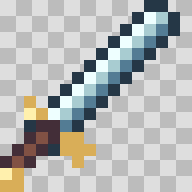
The illustration above is an enlarged preview. The native export remains 16×16.
sword.ashfox imports shared.ashfox; keep both source files together.
2. Look from the angle you want
With Chrome/Chromium installed:
npx --no-install ashfox capture fox.ashfox --azimuth 45 --elevation 20 --output fox-angle.png
npx --no-install ashfox replay fox.ashfox --clip tail_wag --output tail-wag.gif
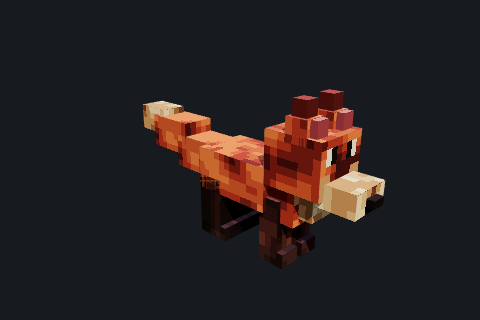
You have a PNG of the chosen view and an animated GIF. These commands do not
create build directories or read a parent workspace. Omit --output to receive
bytes through a pipe or process API. See observe an asset.
3. Make one change
Ask an agent with file and command access:
Make the sword blade lighter while keeping its silhouette and dimensions.
Read sword.ashfox and its imported shared.ashfox. Edit source only.
Inspect and capture the result at native size and enlarged scale.
Export a new sword-light.png and tell me what changed.
You can also edit the source in a text editor. Export/capture again with a new
filename; existing files are never overwritten by --output. Compare the
results and keep the source version you prefer. Passing compilation does not
replace looking at the image or listening to a sound.
4. Choose your next task
- Create a model, draw an item, or make a sound.
- Pass source and media in memory, including persistent agent sessions.
- Run the assets in a web game.
- Build a Minecraft resource pack.
- Manage several assets when shared output rules become useful.